
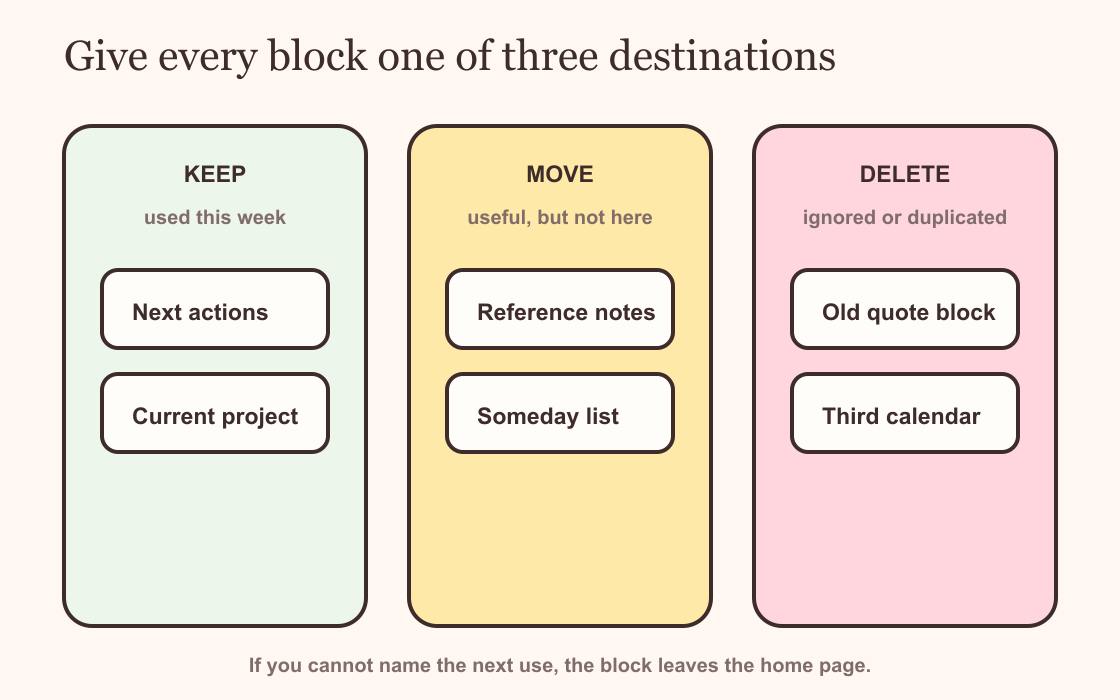
A dashboard reset is faster than another redesign. Duplicate the page, then label every visible block Keep, Move or Delete. Keep what you used this week. Move useful reference material to the page where it belongs. Delete duplicates and anything you have ignored long enough to forget.
Only choose colours after the first screen makes sense again.
Make a copy before you touch it
Duplicate the dashboard and add the word Reset to the copy. Work there. The old page becomes a safety net, which makes it much easier to remove a complicated view or an arrangement that took ages to build.
Do not tidy the original first. Tidying invites tiny decisions about icons, spacing and labels. The copy exists so you can make large decisions without the fear of losing something.
Set a short limit. Twenty minutes is enough for the first pass. A dashboard that needs a two-hour archaeological dig already contains too much.
Judge what you use, not what you planned
Look at the first block. When did you last open, tick, edit or act on it? The question is about use, not potential.
A project view you opened yesterday stays. A beautiful reading tracker you have ignored since spring probably moves. The quote gallery that arrived with a template can leave unless you still stop to read it.
Be careful with maintenance-heavy blocks. A manual progress bar may look useful while quietly asking you to update the same number in two places. Keep the source record and remove the imitation.
Keep what earns the first screen
The first screen is expensive space. Keep the current work, a short route to active pages and one piece of information you repeatedly need at a glance.
A useful block changes what you do next. It shows the next deadline, opens the active project or starts a focus session. A block that repeats the date beside a calendar beside another date card is decorating the same fact three times.
I would keep fewer blocks at a comfortable size rather than shrink a crowded arrangement until it technically fits.
Move reference material out of the way
Useful does not mean useful here. Notes, bookmarks, completed projects, someday ideas and long database views deserve homes of their own.
Create an Archive or Reference page if those pages do not exist. Move the blocks there, then link that page from a small navigation section. You have preserved the material without asking it to perform every time the dashboard opens.
Templates often place examples on the home page to demonstrate what is possible. Once you understand the setup, those examples have finished their job.
Delete the duplicates
Remove the third route to the same database. Remove the abandoned habit tracker. Remove widgets that show information you already see more clearly in Notion.
If deleting feels too final, move the block to the bottom of the old copy. Then remove it from the reset page. You can recover it later, but it no longer gets to vote on today's layout.
This is also the time to remove broken embeds and old links. The widget troubleshooting guide can help if an embed still deserves space but needs a repair.
Rebuild one row
Start the reset page with the work you kept. Put navigation beside or above it. Add one widget only if the page now lacks a useful signal.
A timer, weekly view or small date can support the row. Browse the Productivity & Wellbeing collection by purpose rather than filling every gap. If the widget's absence makes no difference, keep the gap.
Open the page on a phone. Notion will stack columns, so make sure the main work arrives before the supporting card. Move anything that creates a long, decorative queue.
Leave the reset alone for a week
Use the new page without polishing it. Notice what you reach for and what you still avoid.
After a week, style the blocks that stayed. The page will ask for fewer decisions because its structure came from use rather than an empty canvas.